Category: AI

  • Choosing Between the Tapo C560WS and C660: What You Really Need to Know

    A simple guide to understanding the differences between the Tapo C560WS and the newer C660 for home security

    When I first ordered the Tapo C560WS, I thought I’d nailed the perfect home security camera choice. But then, I came across the newer Tapo C660, and I started wondering: is it just a fresh version of the C560WS with solar and battery upgrades? If you’re curious about the differences and trying to figure out which one makes sense for you, let’s take a quick, no-fluff look at these two cameras.

    What’s the real difference between the Tapo C560WS vs C660?

    The Tapo C560WS is a solid indoor/outdoor security camera that many users have found reliable for everyday home monitoring. It features a 2K resolution, pan and tilt functions, night vision, and a siren for alerting.

    The newer Tapo C660 looks a bit similar but packs some appealing extras. Yeah, it includes solar power and a built-in battery, which means it can work off-grid and won’t go offline if the power cuts out. That’s a big deal if you want continuous monitoring without worrying about losing connection or climbing on a ladder to recharge the camera.

    Beyond power, the C660 also benefits from some improved specs like better night vision and possibly enhanced AI features for motion detection—though the core camera quality and smart features are pretty close.

    Why consider solar and battery power?

    I think the biggest standout feature that sets the C660 apart is its power versatility. Solar charging lets you place the camera far from traditional power sources—a game-changer for certain setups.

    Battery backup means fewer interruptions during power failures, which is crucial if security is a priority and you rely on that footage. This makes the C660 excellent for spots like backyards, sheds, or any outdoor area where running power cables could be a hassle.

    Should you switch or stick with the Tapo C560WS?

    If your current setup works fine and you have reliable power, the C560WS might still be all you need. It’s a dependable camera, known for clear imagery and solid app integration. But if you want more freedom in placement or the peace of mind that comes with battery backup and solar options, the C660 is worth the upgrade.

    It’s also good to check pricing and availability, since newer models can sometimes be pricier or have limited stock.

    Where can you find more info?

    For reliable specs and official details, check out the manufacturer’s pages:
    Tapo C560WS Official Product Page
    Tapo C660 Official Product Page

    And for broader insights on outdoor security cameras and solar power options, a trusted site like CNET’s Home Security section can help you see what else is out there.

    Final thoughts on Tapo C560WS vs C660

    When it comes down to it, the choice between the Tapo C560WS vs C660 centers on your specific needs. If you want simplicity and cost-effectiveness, the C560WS delivers. If flexibility and added security during power outages sound useful, then the C660’s solar and battery features might be worth considering.

    Either way, both cameras offer solid performance in the budget-friendly smart security camera market. It just depends on how much extra convenience or independence from wiring you want.

    Hope this quick rundown helps you make an informed choice without the headaches. Happy securing!

  • How to Automate Your Whole House Ventilation with Airthings

    Control your ventilation system effortlessly using Airthings for better indoor air quality

    If you’ve ever wanted to make your whole house ventilation system smarter and more responsive, you’re not alone. The idea of having your ventilation kick in automatically when indoor air quality drops is pretty appealing. With the right tools, particularly an Airthings monitor, you can actually automate this process and ensure your home air stays fresh without you having to think about it.

    Whole house ventilation is crucial for maintaining a healthy indoor environment by managing things like carbon dioxide (CO2) and volatile organic compounds (VOC), which are indicators of poor air quality. Airthings produces monitors that track these metrics in real-time, giving you a way to know exactly when your home’s air needs freshening up.

    Why Automate Your Whole House Ventilation?

    Automatic control of your whole house ventilation helps you avoid guessing when to turn it on or off. You don’t have to worry about forgetting or wasting energy by running the system unnecessarily. Instead, your ventilation will respond dynamically to actual air quality conditions, ensuring better comfort and health.

    How Airthings Monitors Help

    Airthings offers advanced monitors that detect VOC and CO2 levels, among other pollutants. When these levels exceed thresholds you set, the system can trigger actions, like turning on your ventilation. Airthings supports various integrations, including smart home platforms like IFTTT, Home Assistant, and more, which can act as the bridge between your monitor and your ventilation system.

    Connecting Airthings to Your Ventilation System

    This is where it gets a bit technical but don’t worry—it’s doable. Your whole house ventilation system typically has a control interface, such as a relay or low-voltage input, that can be activated by an external signal. To automate it:

    • Use a smart relay or actuator that can receive commands from your smart home network.
    • Connect this relay to your ventilation control circuit.
    • Set up Airthings (through its integration platform) to send on/off commands to the relay based on VOC and CO2 levels.

    If your ventilation system is older or doesn’t have a smart controller, you might need to add a smart thermostat or a compatible smart controller device that can interact with your home automation platform.

    Tools and Integrations to Consider

    • Home Assistant: This open-source home automation platform can pull data from Airthings and control smart relays.
    • IFTTT (If This Then That): An easy way to create triggers based on Airthings readings.
    • Smart Relays: Devices like Shelly or Sonoff can be integrated to physically turn your ventilation system on or off.

    Benefits You’ll Notice

    Once set up, you’ll enjoy better air quality without lifting a finger. Your ventilation system will run only when necessary, potentially reducing energy waste while keeping your indoor air healthy.

    Final Tips

    • Always check your ventilation system’s manual or consult a professional to ensure compatibility.
    • Start with conservative thresholds for VOC and CO2 to avoid over-triggering.
    • Test thoroughly to make sure the system responds as expected.

    If you’re ready to take your home’s air quality to the next level, automating your whole house ventilation with Airthings is a smart move. It’s about making your living space healthier and your home smarter — all with less hassle.

    For more info, check out the official Airthings website Airthings Official and Home Assistant’s integration guide Home Assistant Airthings Integration.

  • Understanding Zima OS’s New Premium License: What It Means for You

    A clear look at Zima OS’s upcoming premium edition and its impact on users

    If you’re a fan of Zima OS or considering jumping on board, you might be curious about the new changes coming up. Recently, Zima OS announced a shift in how its licenses will work, especially with the introduction of the Zima OS premium license. Let’s break down what this means for everyday users like you and me.

    What’s Changing with the Zima OS Premium License?

    The main takeaway is that Zima OS will be rolling out a premium edition lifetime license priced at $30 with their version 1.5.0 update. This new premium license will unlock the full potential of Zima OS without the restrictions present in the free version.

    For most casual users, the free version will still be available but with some limitations: You’ll only be able to install up to 10 apps, use 4 disks, and have 3 users on your system. Honestly, these boundaries seem pretty fair considering the software is free.

    Why the Premium License Could Be Worth It

    You might wonder if $30 is a lot for a lifetime license. When you compare it to many software subscriptions or other OS licenses, it’s actually a pretty modest price for a product you can use forever without monthly fees. Plus, the premium license really opens up more flexibility.

    If you’ve been on version 1.4.x, here’s some good news: upgrading to the premium license will be free for a limited time! That’s a nice way to reward the early users who helped build the community. Also, if you buy any hardware device directly from Zima, the premium license automatically comes with it.

    What This Means for You as a User

    Having a clear understanding of these tiers can help you decide what’s best for your needs. If you’re a light user who just needs basic features, the free version is a solid choice. But if you’re more demanding—maybe you want more apps, more disk space, or more users—investing in the premium license might save you headaches down the road.

    How to Stay Updated and Get the Most Out of Zima OS

    If you want to check out the latest announcements, the official Zima OS website is a great place to start. You can also follow trusted technology news sites that cover open-source OS developments for broader perspectives Zima OS Official Site.

    For more on Linux and open-source alternatives, sites like Linux Journal and Distrowatch offer helpful insights and comparisons.

    Wrapping Up

    The introduction of a paid premium license for Zima OS seems like a natural step as the system matures. It keeps the base system accessible while giving power users extra options for a small one-time fee.

    Personally, I think this approach balances fairness and sustainability. It’s good to see developers rewarded without shutting out those on a budget. If you’re already using version 1.4.x, don’t miss the chance to upgrade for free before the offer ends!

    If you’re new to Zima OS, consider your usage needs carefully. The free version might be all you need to get started and explore. Either way, it’s exciting to watch this OS evolve with its community’s support.

  • Can Your Tiny VPS Handle a Powerful AI? Let’s Talk.

    Can Your Tiny VPS Handle a Powerful AI? Let’s Talk.

    Exploring how to use cloud-powered tools like GitHub Copilot on a VPS that can’t run its own AI models.

    You’ve got a great idea simmering. You’ve spun up a small, affordable Virtual Private Server (VPS) — maybe it only has 1GB of RAM and a single CPU core. It’s perfect for a lightweight website or a small personal project. But then you start wondering… could this little server handle a powerful AI assistant? Can I get Copilot on VPS without needing a supercomputer?

    It’s a thought that crosses the mind of almost every tinkerer. You see these amazing AI models that can write code, answer questions, and brainstorm ideas, and you want to integrate one into your own private server space. But the hardware requirements seem impossible for a budget-friendly VPS. The good news? You’re asking exactly the right question, and the answer is probably a lot simpler and better than you imagine.

    The Big Misconception: Running vs. Accessing AI

    First, let’s clear up a common point of confusion. There’s a huge difference between running an AI model and accessing one.

    • Running a model locally (or on your VPS) means you have to load the entire Large Language Model (LLM)—like those available through Ollama or similar projects—into your server’s memory (RAM). These models are massive, often requiring many gigabytes of RAM and a powerful GPU to function effectively. Your 1GB VPS would, unfortunately, fall over before it even started.
    • Accessing a model via an API is completely different. Services like GitHub Copilot Pro or OpenAI’s GPT-4 do all the heavy lifting on their own massive, powerful servers. You aren’t running the model; you’re just sending a request over the internet and getting a response back.

    Think of it like streaming a 4K movie. Your laptop doesn’t need to be powerful enough to store and edit the entire film. It just needs a good internet connection to display the video that a powerful server at Netflix is sending it. Using a cloud-based AI like Copilot is the exact same principle.

    How to Actually Use Copilot on a VPS

    So, can you use your GitHub Copilot Pro account on your tiny Ubuntu VPS? Absolutely. And it’s surprisingly straightforward.

    The secret isn’t to install some special graphical interface or AI software on your server. The magic happens through your code editor on your main computer, most commonly Visual Studio Code. The key is an official extension called Remote – SSH.

    This powerful extension allows your local VS Code application to connect directly to your VPS. You can open folders, edit files, and use a terminal just as if they were on your own machine, but all the files and processes are running on the server.

    When you do this, your locally installed VS Code extensions—including GitHub Copilot—keep working. Copilot sees the code you’re editing (which is on the VPS) and sends it to GitHub’s servers for analysis. When the suggestion comes back, it’s seamlessly displayed in your editor. Your VPS is just the host for the files; all the AI thinking happens in the cloud.

    Your Simple Copilot on VPS Workflow

    Forget about installing complex software on your server. Here’s all you need to do:

    1. On Your Local Computer: Make sure you have Visual Studio Code installed. From the extensions marketplace, install the official GitHub Copilot extension and the Remote – SSH extension.
    2. On Your VPS: You just need a standard SSH server running. Pretty much every Linux VPS from providers like DigitalOcean or Linode comes with this configured out of the box.
    3. Connect Them: In VS Code, use the Remote – SSH extension to connect to your VPS using its IP address and your login credentials.
    4. Start Coding: Once connected, open a project folder located on your VPS. As you start typing, your Copilot extension will activate and begin offering suggestions, just like it would for a local file.

    That’s it. Your 1GB VPS doesn’t need to do anything other than hold your code and run your application. It doesn’t need extra RAM or a fancy GPU because GitHub’s servers are doing all the heavy AI work.

    This approach isn’t a weird workaround; it’s how thousands of developers work every day. It allows you to use a lightweight, affordable server for your projects while still getting the full power of a world-class AI coding assistant. So, that idea you had wasn’t silly at all—it was smart, efficient, and the right way to think about building a modern development setup.

  • Finding the Right 2U Server for an NVIDIA RTX 6000 Blackwell GPU

    What to look for in a 2U server when using a power-hungry RTX 6000 Blackwell GPU

    If you’re looking to run a hefty deep learning project and have snagged an NVIDIA Blackwell RTX 6000 GPU with a 600W TDP, you’re probably already realizing one challenge: finding a 2U server compatibility that can safely and reliably house this beast. Trust me, it’s not as straightforward as it sounds. Many popular server models just don’t officially support this GPU due to its thermal and power demands.

    Let’s talk about why the RTX 6000 Blackwell GPU changes the game for 2U servers. This card requires a lot of raw power and generates significant heat, making server compatibility tricky. Most manufacturers do not list this GPU as compatible because their cooling systems might not cope well with the heat output. Thermal limitations are a real concern.

    What to Look For in a 2U Server Compatibility for the RTX 6000

    When you’re searching for a server to pair with this GPU, a few specs become crucial:

    • Processor: Aim for something beefy like an AMD EPYC™ 9455P processor.
    • Memory: At least 256 GB of ECC RAM is a solid baseline.
    • RAID Controller: Battery-backed RAID controllers that support a combination of configurations (like RAID 1 for redundancy and RAID 10 for speed and fault tolerance) are ideal.
    • Networking: At least one SFP28 port to handle high-speed network needs.

    One popular option on paper is the ASUS ESC4000A-E12. It can house up to 4 GPUs, so one RTX 6000 should, in theory, be no problem. But without official compatibility, it’s a gamble. Will it handle the power and thermal loads? Will it be reliable?

    Experiences and Alternatives

    Most admins who’ve tried this combo suggest checking server chassis airflow and power supply capacity carefully. The ASUS ESC4000A-E12 typically delivers solid air cooling and robust power delivery, but actual compatibility might depend on the exact GPU model revision and server configuration.

    Alternative routes might include:

    • Custom cooling modifications to help with heat.
    • Looking at high-end workstation chassis that support large GPUs but in a server-like build.
    • Checking with server manufacturers for upcoming firmware or hardware revisions that list RTX 6000 support.

    Final Thoughts on 2U Server Compatibility

    In short, when dealing with a high-power GPU like the NVIDIA RTX 6000 Blackwell, 2U server compatibility boils down to three pillars: power, cooling, and server specs.

    If you’re eyeing something like the ASUS ESC4000A-E12, make sure you review user reports and possibly test configurations before committing. It might even make sense to contact the vendor directly regarding compatibility updates.

    For more info on server specs and GPU compatibility, check out ASUS’s official server product pages, and NVIDIA’s workstation GPU specs.

    Remember, picking the right server is about balancing raw performance needs with physical and thermal realities. Don’t rush it—getting the setup right will save you headaches later on.

  • Smart Locks with Door Sensors: Keeping Your Crawl Space Secure and Closed

    Smart Locks with Door Sensors: Keeping Your Crawl Space Secure and Closed

    How a wifi door lock with handle and sensor can help you avoid leaving your door open

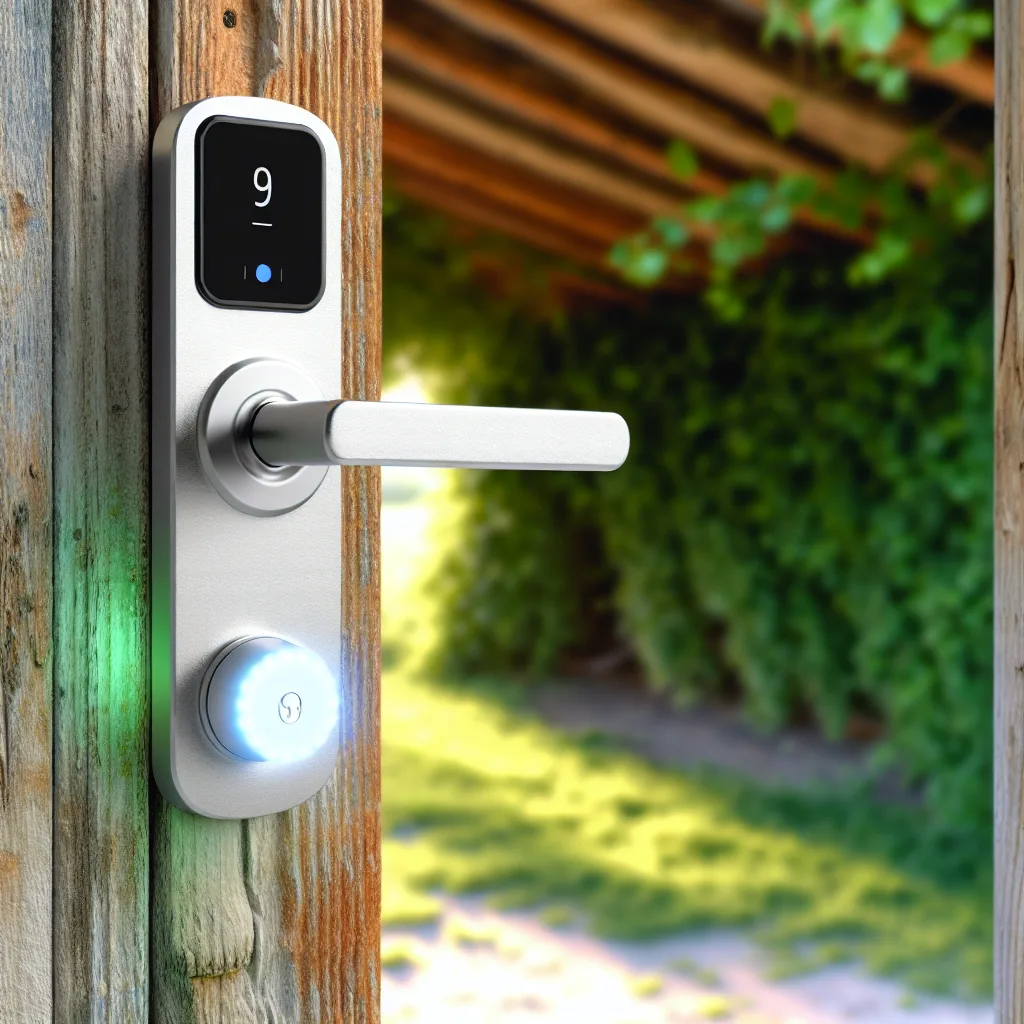
    If you’ve ever had one of those days where you’d swear your door was closed, only to come back and find it wide open, you’re not alone. That’s exactly the problem a wifi door lock with handle and door sensor can solve, especially for those hard-to-watch doors like a crawl space. I recently looked into options for a crawl space door that has just a single hole for a locking knob and wanted something smarter—something that tells me if I accidentally leave the door open while I’m doing yard work.

    Why Choose a Wifi Door Lock With Door Sensor?

    A normal lock just locks the door but doesn’t alert you if it’s open. A wifi door lock with an integrated door sensor changes that. It lets you know if the door has been left open for too long, sending alerts right to your phone or even Alexa. It’s perfect for anyone who tends to forget or is concerned about security and energy efficiency.

    Features to Look for in a Crawl Space Wifi Door Lock

    When shopping for a smart lock for a crawl space or any door with limited lock options, consider these important features:

    • Compatibility with your current smart home system: Many devices work with platforms like Smart Life or the newer Matter standard that’s gaining traction for better device interoperability.
    • Integrated door sensor: This is crucial—it monitors door status and can push notifications.
    • Alerts through multiple channels: Phone notifications, Alexa announcements, or even email.
    • Easy installation: Since crawl space doors often have unique setups, a single-hole lock with a handle that fits is ideal.

    Recommended Wifi Door Lock Options

    While I don’t have a one-size-fits-all recommendation (doors and setups vary), here are some decent starting points:

    • August Smart Lock Pro + Connect offers great integration with Alexa and Apple HomeKit and supports door sensors.
    • Yale Assure Lock SL also supports sensors and works well with various smart home systems.
    • Schlage Encode Smart WiFi Deadbolt integrates easily and sends alerts for door statuses.

    Keep in mind, some locks don’t include sensors but can be paired with smart door sensors from brands like Samsung SmartThings or Aqara, which work with platforms like Matter and Smart Life. For instance, pairing a smart lock with a door sensor that has open/close alerts solves the problem neatly.

    How to Set Up Alerts for Your Door

    Once installed, you’ll want to configure your alerts. Typically, these allow you to set a timer for how long the door can stay open before you get notified, which is fantastic for avoiding that marking-the-door-left-open mistake.

    Extra Tips

    • Double-check whether the lock supports your home automation hub.
    • Look for locks that mention easy retrofit for single-hole doors (some locks are designed more for standard deadbolts).
    • Test your setup thoroughly after installation to ensure you get alerts reliably.

    Final Thoughts

    A wifi door lock with handle and door sensor can save a lot of hassle, especially for doors like a crawl space where it’s easy to forget to close properly. It offers peace of mind, helps maintain security, and can save energy by preventing open doors from letting in the elements. If you’re into smart home gadgets, this is a small change that offers real convenience.

    For more on smart lock technologies, check out August’s official site or the Matter project’s homepage. They have tons of info on compatibility and the latest standards.

    If you’re curious about smart door sensors, SmartThings user guide is a great resource to understand sensor setup and alerts.

    Don’t let a simple door get the best of you—get smart about your crawl space door today!

  • Time to Say Goodbye: The Logitech POP Smart Button is Shutting Down

    Time to Say Goodbye: The Logitech POP Smart Button is Shutting Down

    The ‘Logitech POP Discontinued’ news is official. Here’s what it means for your smart home and what to do next.

    I have a few little smart buttons around my house that I honestly don’t think about much. There’s one on my nightstand to turn off all the lights, and another by the door to kick on a “welcome home” scene. They’re simple, reliable, and just… work. They’re Logitech POP buttons, and I just found out their time is officially running out. The news that the Logitech POP Discontinued its service is a quiet little bummer for the smart home world, and it means these handy pucks will stop working entirely on October 15, 2025.

    It’s a strange feeling when a piece of hardware you paid for is being turned off remotely. This isn’t a case of a product no longer being sold; it’s a complete shutdown of the cloud services required for the buttons to function. After October 15th, pressing that button will do absolutely nothing. It’s a classic lesson in the reality of many Internet of Things (IoT) devices: sometimes, you don’t own a product as much as you rent its functionality.

    So, What’s Actually Happening to the Logitech POP?

    According to Logitech’s official End of Life notice, the servers that power the POP Smart Button ecosystem will be permanently deactivated.

    Here’s the breakdown:

    • The Brain is Shutting Down: Every time you press a POP button, it sends a signal to the POP bridge, which then connects to Logitech’s servers over the internet to figure out what to do (e.g., “turn on Philips Hue lights”).
    • No Server, No Action: Without that server connection, the button’s command has nowhere to go. The hardware itself might be perfectly fine, but its brain is being switched off.
    • The Final Date: The official shutdown is scheduled for October 15, 2025. After that, they become colorful plastic paperweights.

    This move is likely a business decision. Maintaining cloud infrastructure for a niche product costs money, and at some point, Logitech decided it wasn’t worth it anymore. It’s a frustrating reality for users, but an understandable, if disappointing, business calculation.

    Why the Logitech POP Discontinued News is a Good Wake-Up Call

    While losing a useful gadget is annoying, the situation is a great reminder of a core risk in the modern smart home. When you buy a device that relies on a company’s specific cloud service to function, you’re placing your trust in that company to keep the lights on indefinitely.

    This highlights the growing appeal of smart home platforms that prioritize local control. Systems like Home Assistant or Hubitat run on a device in your own home, reducing their reliance on external servers. When the internet goes down, your automations still work. And, more importantly, the manufacturer can’t decide to turn your product off a few years down the line. The Logitech POP Discontinued saga is a perfect case study for the benefits of local control.

    Smart Button Alternatives to Consider

    Okay, so it’s time to find a replacement. The good news is that the smart button market has grown a lot since the POP first launched. Here are a few solid alternatives to look into before the deadline hits.

    • Flic 2 Buttons: This is probably the most direct successor to the POP. Flic buttons are small, versatile, and can trigger a huge range of actions, from smart home controls to sending texts. They connect via Bluetooth to your phone or the optional Flic Hub. You can check them out at their official site, Flic.io.
    • Philips Hue Smart Button: If you’re already invested in the Philips Hue lighting ecosystem, this is a no-brainer. It’s incredibly reliable, integrates seamlessly, and the battery lasts for ages. It’s technically for lights, but if you use a hub like SmartThings or Home Assistant, you can often program it to do other things, too.
    • Aqara Mini Switch: For those who want to dip their toes into a more local-control-friendly system, the Aqara Mini Switch is a fantastic and affordable option. It uses the Zigbee protocol, meaning it pairs with a variety of hubs (including its own and third-party ones). It’s tiny, fast, and gives you back control over your own system.

    It’s always a little sad to say goodbye to a piece of tech that served you well. The Logitech POP was a simple, elegant solution to a common smart home problem. But as the Logitech POP Discontinued date approaches, it’s also a great opportunity to explore new options and maybe even build a more resilient, locally-controlled smart home in the process. Time to start shopping for a replacement.

  • So, What Happened to That Schlage UWB Lock We Were Promised?

    So, What Happened to That Schlage UWB Lock We Were Promised?

    An honest look at the much-anticipated smart lock’s release date and the UWB alternatives you can consider right now.

    You know that feeling when a company announces a new piece of tech, and you start imagining exactly how it will fit into your life? That’s how a lot of us in the smart home world felt about the promised Schlage UWB lock. Earlier this year, there was a lot of buzz about a new lock that would use Ultra-Wideband technology to make getting into your home completely seamless. The future was supposed to be now, but as we head deeper into the year, many of us are looking at our doors and asking… so, where is it?

    If you’ve been waiting patiently, you’re not alone. The initial announcement pointed to a release in “Spring 2025.” But here we are in October, and a quick search of store shelves and online retailers shows it’s still missing in action. Let’s talk about what’s going on, what makes this tech so cool, and what you can do if you’re tired of waiting.

    What’s the Big Deal with a Schlage UWB Lock Anyway?

    First, let’s quickly break down what UWB even is. Ultra-Wideband is a short-range wireless communication protocol that’s incredibly precise. Think of it like a super-powered GPS for your living room. Instead of just knowing your phone is near the door, like Bluetooth does, UWB knows its exact location, direction, and motion.

    So, why does that matter for a door lock?
    * Truly Hands-Free Entry: With UWB, you wouldn’t have to pull out your phone or tap it to the lock. The system would be smart enough to know you’re right outside your door and intending to enter, automatically unlocking for you. No more fumbling with groceries to find your phone.
    * Enhanced Security: This spatial awareness makes it much more secure than other protocols. It can prevent relay attacks, where a thief might try to trick your lock by amplifying your phone’s signal from a distance. UWB knows your phone isn’t actually at the door.

    Schlage is a giant in the lock industry, known for reliability. Combining their trusted hardware with this new, seamless technology is a big deal for anyone who wants their smart home to be, well, smarter. You can read more about the underlying tech in this great explainer on how UWB works from How-To Geek.

    The Waiting Game: Where is the Schlage UWB Lock?

    The original announcement, made during the tech showcases at the beginning of the year, set the expectation for a Spring 2025 release. But spring came and went. The reality of manufacturing and perfecting new technology is that delays are common.

    Bringing a product like this to market is complex. It involves:
    * Perfecting the hardware so it’s durable and reliable.
    * Fine-tuning the software to be bug-free and secure.
    * Navigating the inevitable supply chain hurdles.

    While Schlage hasn’t given a formal, updated release date, it’s safe to assume they’re taking the time to get it right. For official updates, the best place to keep an eye on is the Schlage newsroom on their website. Rushing a security product to market is a bad idea for everyone, so a delay is frustrating but ultimately a good thing if it means a more secure and reliable lock.

    Can’t Wait? UWB Lock Alternatives You Can Buy Today

    Patience is a virtue, but sometimes you just want the cool new tech now. If you’re tired of waiting for the Schlage UWB lock, the good news is that other brands have already brought similar products to market.

    One of the most popular alternatives is the Aqara Smart Lock U100. It’s a full-featured smart lock that already incorporates UWB for that hands-free, phone-in-your-pocket unlocking experience. It also works with Apple Home Key and has a keypad, fingerprint reader, and a physical keyway as backups. It’s a solid choice if you want to experience UWB right now and are invested in the Apple ecosystem.

    While the feature set is impressive, the main consideration is brand trust. Many people have years of experience with Schlage and prefer to stick with what they know. But if you’re feeling adventurous, exploring brands like Aqara can give you a glimpse into the future today.

    So, the big question remains: should you wait for Schlage or jump on an available alternative?

    Honestly, there’s no wrong answer. If you’re a long-time Schlage user and value its reputation for rock-solid security, it’s probably worth waiting a bit longer. They’ll likely deliver a polished, reliable product that integrates well with their existing systems. But if your priority is getting that seamless UWB experience as soon as possible, then checking out the alternatives might be the right move for you.

    What about you? Are you holding out for the Schlage, or have you already picked up a different UWB lock? I’d love to hear your thoughts.

  • TICC-DASH: A Simple Dashboard for Chrony Clients You’ll Actually Like

    TICC-DASH: A Simple Dashboard for Chrony Clients You’ll Actually Like

    Explore how the new TICC-DASH dashboard makes managing Chrony NTP clients straightforward and lightweight.

    If you’ve ever worked with Chrony for network time synchronization, you probably know that managing it through the command line can sometimes be a bit of a hassle. That’s where the new Chrony dashboard, TICC-DASH, steps in to make life easier — especially if you prefer a simple, web-based interface to keep an eye on things.

    The “chrony dashboard” is designed as a lightweight and user-friendly tool for monitoring Chrony clients. It was formerly known as Chrony NTP Web Interface V2 but has now been revamped under the name TICC-DASH. The dashboard gives you a clear view into your time synchronization setup without weighing down your system.

    What Makes TICC-DASH Stand Out as a Chrony Dashboard?

    One of the key features of this new chrony dashboard is its simplicity. Unlike some heavier monitoring tools, TICC-DASH focuses on doing one thing well — providing a real-time display of Chrony NTP client statuses and statistics. It doesn’t require extensive setup or resources, which makes it an excellent fit for lightweight server environments or even home labs.

    Easy to Use and Access

    TICC-DASH offers a clean and intuitive web interface. You don’t have to fuss around with cryptic command-line outputs anymore. Instead, you just open your browser, hit the dashboard URL, and instantly see your synchronized devices and their status. It shows sync sources, offset, delay, and other key metrics that are essential for troubleshooting or just general monitoring.

    The dashboard also supports multiple clients, so if you run several devices with Chrony, you can manage and monitor them all in one place.

    Installing and Getting Started

    Installation is straightforward and well-documented. You can find the official resources and instructions on the project’s GitHub page or the developer’s documentation site. Since it’s lightweight, you won’t have to worry about heavy dependencies or complex configurations.

    For those who want a reliable NTP monitoring tool that just works without the clutter, TICC-DASH could be the perfect fit. It’s especially handy for sysadmins, hobbyists, and anyone who’s passionate about keeping their servers or networks perfectly synchronized.

    Why Use a Chrony Dashboard?

    If you’re new to using a Chrony dashboard, you might wonder why you need one at all. The main benefit is visibility. Time synchronization is critical in many areas — from logging and security to distributed systems and network management. Having a dashboard gives you an easy way to spot issues early before they cascade into bigger problems.

    For more in-depth info on Chrony itself, Chrony’s official documentation is a great place to start. And if you want to dive into time synchronization in Linux more generally, Red Hat’s guide to NTP has solid background and practical tips.

    Final Thoughts on TICC-DASH

    While the world of NTP and Chrony might seem niche, tools like TICC-DASH help bring a bit of user-friendliness to the fray. It’s refreshing to find an open-source project that keeps things simple without compromising on usefulness. If you’re running Chrony clients and want a straightforward, no-fuss way to monitor them, definitely check out TICC-DASH.

    And if you’re curious about how to set it up or want to see it in action, the project’s main site and repository will have the latest updates and downloads.

    In short, TICC-DASH is a handy chrony dashboard that’s worth a look if you want to keep time sync management neat and tidy, with minimum fuss and fussiness. Sometimes, the best tools are the ones that just do what they’re supposed to, without extra noise.

  • How to Try iGPU Passthrough on Proxmox for Jellyfin Transcoding

    How to Try iGPU Passthrough on Proxmox for Jellyfin Transcoding

    A step-by-step look at enabling integrated GPU passthrough for Ubuntu VMs in Proxmox — and the tricky parts to watch out for.

    If you’ve been tinkering with virtualization and want to boost your media server’s performance, you might have heard about iGPU passthrough. It’s a method that lets you assign your system’s integrated GPU directly to a virtual machine, so you can use hardware acceleration for workloads like video transcoding in Jellyfin. I recently dove into this myself using Proxmox and an Ubuntu VM, hoping to speed up my Jellyfin transcoding. Here’s what I learned, along with some steps and pitfalls to watch out for.

    What is iGPU Passthrough, Anyway?

    In simple terms, iGPU passthrough means giving your virtual machine direct control over your computer’s integrated graphics processor, usually found on Intel CPUs. This lets software running inside the VM utilize the GPU just like it would on a physical machine, which can speed up tasks like video encoding.

    Why Try iGPU Passthrough in Proxmox?

    Virtual machines are flexible but often lack access to hardware acceleration. By passing the integrated GPU through to your VM, you potentially enable faster and more efficient transcoding inside Docker stacks like Jellyfin’s. It’s fantastic in theory but can get pretty complex in practice.

    How I Approached Setting up iGPU Passthrough

    I followed a method that starts with adjusting the boot parameters and kernel modules on the Proxmox host. Here’s a breakdown:

    • Step 1: Edit the GRUB config to enable IOMMU and GPU virtualization features with the intel_iommu and i915.enable_gvt kernel parameters.
    • Step 2: Run update-grub to apply the new boot settings.
    • Step 3: Add vfio kernel modules — these help with safe GPU passthrough.
    • Step 4: Configure unsafe interrupt allowances and kernel module options for smooth virtualization.
    • Step 5: Blacklist default GPU drivers (like Radeon, nouveau, Nvidia) so the passthrough driver can take control.
    • Step 6: Identify your GPU’s PCI IDs using lspci, then assign them to the vfio-pci driver.
    • Step 7: Update initramfs and reboot your Proxmox node.

    This sequence has become a common baseline for enabling passthrough, leveraging Intel’s GVT-g technology for virtual GPU sharing. If you want more details on these steps, the Arch Linux wiki offers a great resource.

    Where Things Can Get Tricky

    Once the host is configured, the next step is assigning the GPU to your VM. I made sure to enable the iGPU in the BIOS — it was set to ‘auto,’ which can cause conflicts — and added the device to the VM’s hardware list. However, setting it as the primary GPU lead to boot errors, so I left it as secondary.

    Inside the VM, I expected to see /dev/dri/renderD128, which is the device node that enables GPU tasks. But it never appeared. That’s when the frustrations started. This device is crucial for Docker containers like Jellyfin to use the GPU for transcoding. Without it, the VM can’t leverage hardware acceleration.

    What Could Be Wrong?

    Some challenges with iGPU passthrough on systems like the Intel N150 chipset include:

    • Firmware and BIOS quirks — the iGPU may not expose virtualization-friendly interfaces or might require odd BIOS settings.
    • IOMMU groupings — sometimes the integrated GPU shares interrupt groups with other devices, complicating isolation.
    • Driver support inside the VM — the Linux kernel needs the right drivers for the passed-through GPU.

    Given that /dev/dri/renderD128 was missing, I suspected the VM kernel didn’t properly recognize the GVT-g virtual GPU.

    Alternatives and Tips

    If iGPU passthrough is being stubborn, here are a few things to consider:

    • Use dedicated GPU passthrough: Sometimes a discrete GPU is simpler to passthrough and gives better results.
    • Check BIOS updates: Manufacturers sometimes improve virtualization support over time.
    • Try different kernel versions: Some Linux kernels have better support for GPU virtualization.
    • Look into software transcoding: Though CPU-intensive, it might be a fallback option.

    For deep diving and troubleshooting, NVIDIA and Intel’s official virtualization docs can be helpful:
    – Intel GVT-g documentation: https://01.org/graphics/gvt-g
    – Proxmox forums offer practical advice from users working on similar setups.

    Wrapping Up

    iGPU passthrough in a Proxmox Ubuntu VM setup can unlock excellent performance boosts for media servers like Jellyfin. But it’s not always straightforward—especially on newer chipsets like the Intel N150 that might have quirks to work through.

    If you try this, be patient, take notes, and don’t be afraid to peek into your system’s PCI device groups and kernel logs to understand what’s happening under the hood. And if it doesn’t work perfectly, there are always workarounds.

    Hope this helps anyone looking to get more out of their home media virtualization setup!